
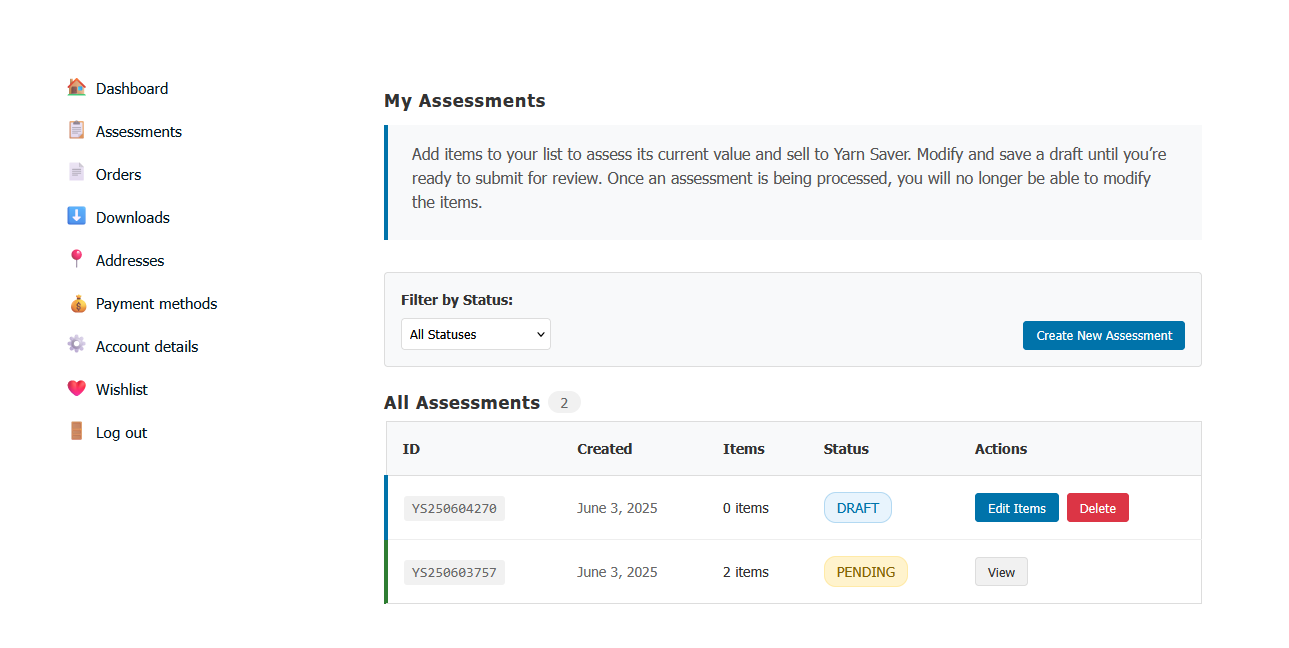
We’re thrilled to announce a convenient new feature at Yarn Saver: our online Assessments tool! This easy-to-use feature lets you effortlessly create, manage, and submit fiber arts’ items for review to either sell or appraise at Yarn Saver.
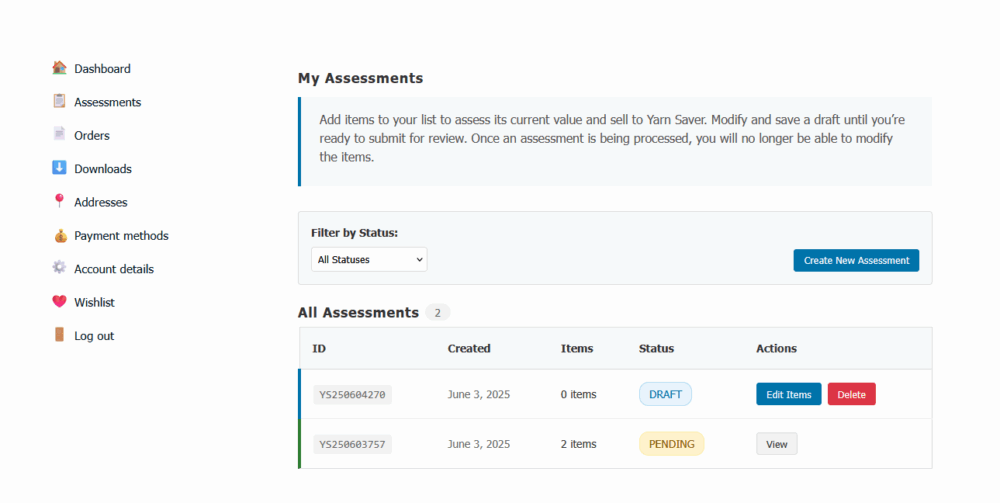
Why does this help?
The biggest thing this helps with is giving us the ability to reduce the waiting time from submitting your assessment to payout, minus the time it takes to get your items to us, go from weeks to days! And for in-person events like our booth at Indie Untangled 2025 – MINUTES! This automates a lot of the process for you as a seller and for our team.
You will now enjoy:
- Convenience: Everything you need is centralized right in your account – from status updates to making a new assessment to getting paid.
- User-Friendly: Designed specifically with fiber artists in mind with easy-to-follow steps.
- Fast & Secure: Quickly submit assessments without extra emails or paperwork.
Manual Methods Were Taking Too Long
Originally, our process was to submit a “request” to be considered for the assessment process at Yarn Saver. Our team would respond to these requests. Then, they would manually go through the process using PDFs and emails to execute a payout process for a seller. This was making the assessment process take 4-6 weeks minimum to process because it was so manual!
No longer! With managing the assessments digitally through your online account here at Yarn Saver, you don’t need to wait on us to see your “request” to begin the process. All you need to do is create an assessment, add some details about your items, and submit to our assessors directly!
step-by-step guide on how it works
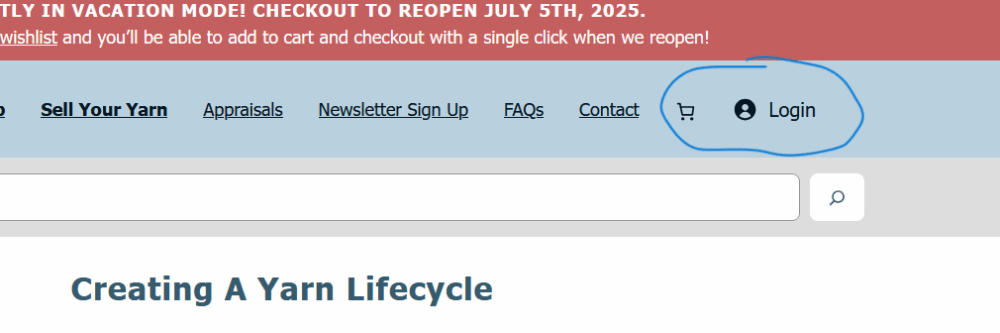
- Log In to Your Account
- Visit the Yarn Saver website and click on “My Account/Login” in the top right corner of any pages.
- If you have ordered items from us in the past, you already have an account! Use your email address you used to purchase items. Use the Forgot Password link if you don’t know your password.
- If you don’t have an account, you can register for an account on the Login page.
- Otherwise, enter your login details to access your account.
- Access the Assessments Tab
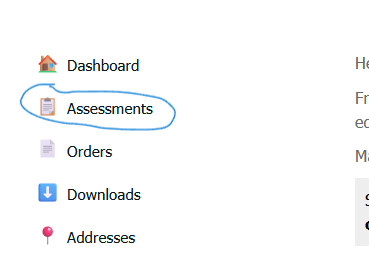
- Once logged in, you’ll see a new tab labeled “Assessments”.
- Click this tab to view your assessment dashboard.
- Create a New Assessment
- On the Assessments page, click the button labeled “Create New Assessment”.
- A new assessment will be created for you as a draft.
Adding Items To Your Assessment
- Add Items to Your Assessment
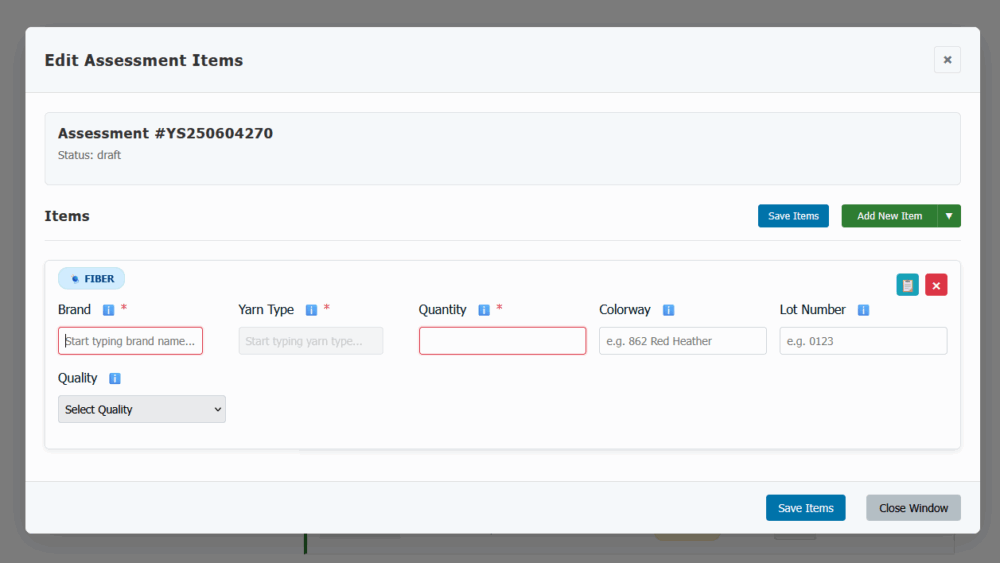
- Click on “Edit Assessment Items” to open the item editor.
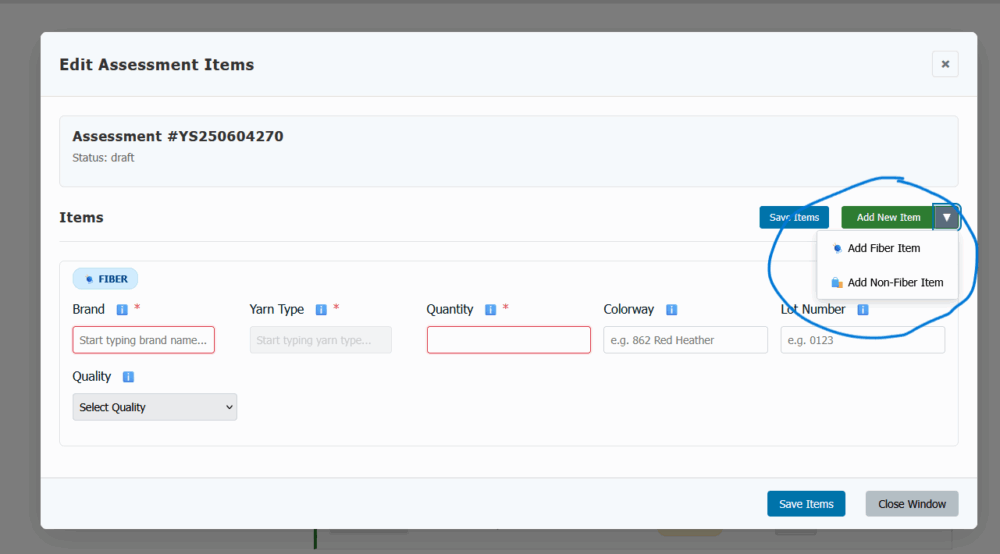
- Clicking “Add New Item” will automatically create a Fiber Item (like yarn or roving) for you. If you need to add a Non-Fiber Item (like knitting needles or project bags), use the arrow to select “Non-Fiber”.
- You can easily duplicate items, especially in circumstances like, for example, you have Malabrigo Rios in multiple different colorways and conditions.
- Made a mistake? You can remove items if needed.
- Fill In Required Details for Your Items
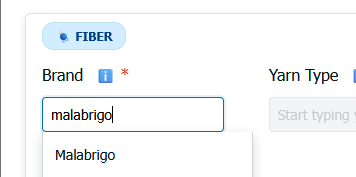
- Brand/Description: Enter the manufacturer, brand name, or if those aren’t applicable or available, enter a good way to identify your item, such as “Handspun Rainbow”. If a matching brand is found, a dropdown will offer suggestions to you on what you might be looking for, but it is not required to select an option from the suggestions.
- Yarn Type (Fiber items only): Specify the product line or type. If a matching type is found, a dropdown will offer suggestions to you on what you might be looking for, but it is not required to select an option from the suggestions.
- Quantity: Indicate how many items you’re adding.
- Fill In Optional Details, If You Would Like To
- Colorway: Official color number or name (or both!).
- Lot Number: Official lot number (if available, not every fiber has one)
- Quality: You can give us a quality score of the item based on condition of the item.
The Quality Scale
This scale is available on the edit screen, but it’s also here for your convenience to reference:
- Like New/Brand New: Original packaging and/or tags are present, no damage, no wearing, piling, or other forms of wear and tear.
- Great: Everything from Like New/Brand New, but it may have differences like it may be missing the tag and/or original packaging, may have minor signs of storage wear and tear, ends may be loose.
- Good: Everything from Great, but it may have differences like it may be caked or balled, may have minor storage wear and tear such as loose ends or the cake/ball may be loose.
- Fair: Everything from Good, but it may have differences like it may have moderate storage wear and tear, may have minor damage but is still usable (the yarn strand is not knotted or broken, no pest damage, no smells, no debris, etc).
Save Your Work and Then Submit When Ready
- Save Your Items (Important! Don’t forget to do this!)
- Once you’ve added all your items, click “Save Items”.
- Your items are now securely stored as a draft. You can finish adding items, submit it for review, or come back to it later!
- When You’re Ready, Submit Your Assessment
- Once you would like your items to start the assessing process, click “Submit”.
- Confirm your submission—remember, after submitting, the assessment can no longer be edited.
Managing Assessments
Want to see how an assessment is doing? You can always check on the assessment’s status when you log into your account. We also send automatic emails when a status changes on an assessment if you don’t want to keep going back to check!
Different statuses mean different things:
- Draft: Every assessment starts here! This means you have full control over modifying your assessment until you are ready to submit.
- Pending: You’ve submitted your assessment, and we haven’t quite taken a look at what you sent in just yet! Please be patient as we process assessments in first come, first serve.
- Waitlisted: You’ve submitted your assessment, but we aren’t taking assessments at this time! Sign up for our newsletter for updates, or check for notices in the Assessments tab; we will give an estimated date when we will begin processing assessments again!
- Approved: Congratulations, we would like to process your items! Be sure to return back to your Assessments tab and look for a “Next Steps” button. Then, choose how you want to give us your items (Ship To Us, Local Dropoff, or if we have upcoming events, they will be listed as options for dropoff as well – this includes Indie Untangled 2025!).
- Declined: At this time, we are not able to accept your items. It may be due to the size of the assessment, the types of items you have (especially if we have a lot of those items already), or other factors. If you have questions about your assessment, send us an email over to [email protected].
An Efficient Way to Process Assessments Going Forward
We believe this new feature will simplify your experience with Yarn Saver, making managing and submitting your assessments smoother than ever.
Questions or feedback? Feel free to reach out to us via the comments below or through [email protected]—we’d love to hear your thoughts!
Happy selling,
— Christina & The Yarn Saver Team


Leave a Reply